How mymico works, screen by screen
What mymico does with your Outlook mail — from sign-up to laytime. Every screen below shows sample data.
What mymico is — and what it is not
mymico is software for dry-cargo shipbrokers. It reads the mail that already reaches your Outlook, sorts it, and puts vessels and cargoes side by side so you can see what fits. After a fixture it follows the voyage against the C/P.
mymico does
- Reads your Outlook mail (read-only) and finds vessel positions, cargo orders, negotiation replies and ops mails.
- Matches every vessel with every cargo: size, cubic, dates and ballast distance.
- Follows your negotiations term by term, and your fixtures against the C/P.
- Calculates voyage results (TCE) and laytime from the SOF.
- Reports: Mico sums up your day at 09:00 and 17:00.
mymico is not
- Not a mail program. Your mail stays in Outlook, in the same folders, exactly as you are used to. You keep reading and answering it there.
- It never sends, moves or deletes a mail. Microsoft gives it read-only access.
- Not a shared market database. Your office’s data is never pooled with other offices.
Works with Outlook only
- mymico connects to Microsoft Outlook / Microsoft 365 work mailboxes.
- Gmail and other mail services are not supported today.
Sign up and start your 7-day free trial
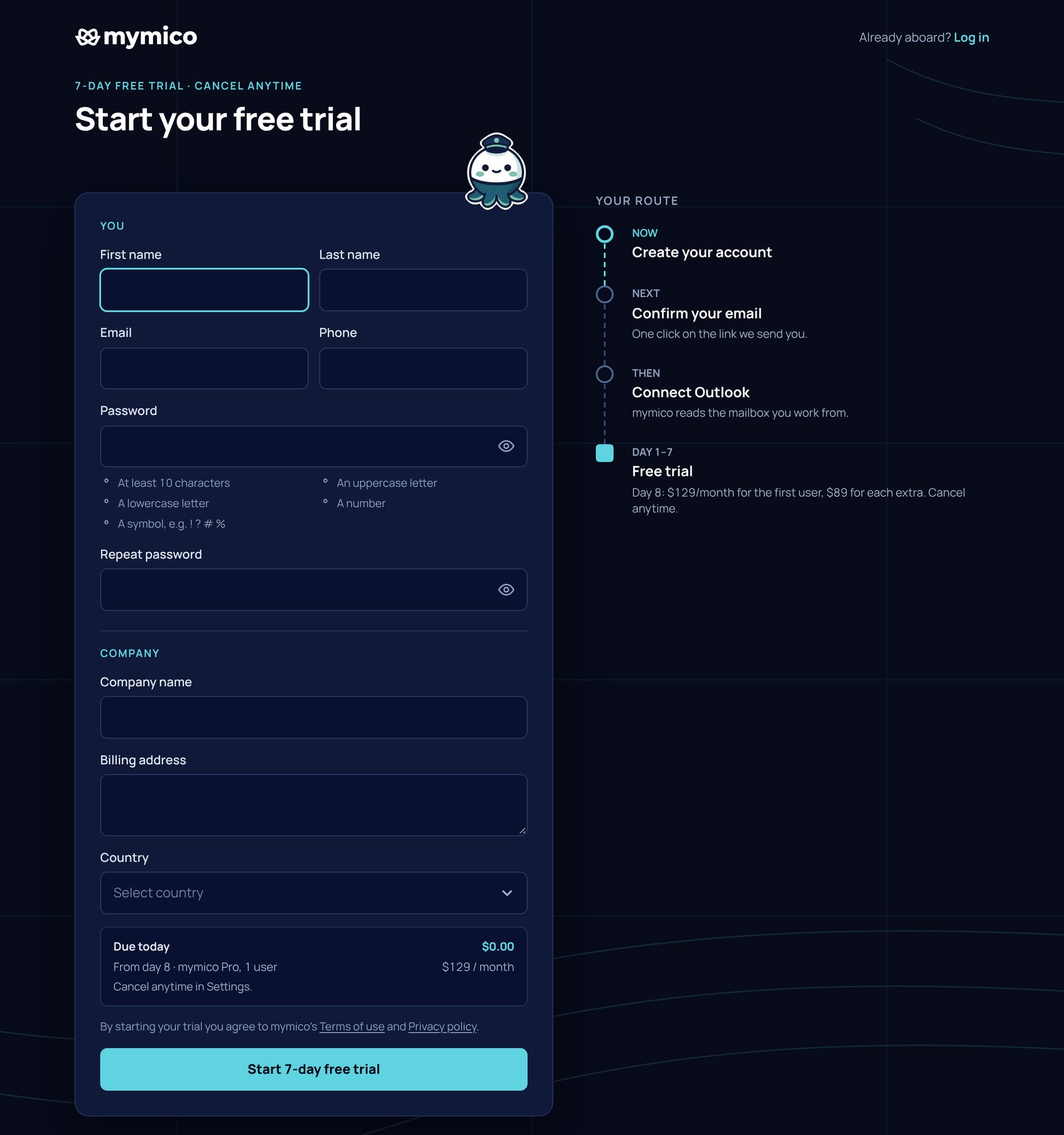
- Your detailsName, email, phone, a strong password, and your company with its billing address and country.
- Your routeCreate the account → confirm your email (one click on the link we send) → connect Outlook → 7 days free.
- Plan and cardChoose Monthly or Yearly and how many users (1–10). The card is checked by Stripe — card details never reach mymico. Nothing is charged today.
- Start the trialFrom day 8: $129 / month for the first user, $89 for each extra user. Yearly: $1,290 + $890 per extra user. Cancel anytime in Account before day 8 and nothing is charged.
One free trial per person: an email address or card that already had a trial starts a paid plan straight away — the form says so before anything is charged. More than 10 users? Write to hello@mymicoship.com.
Connect your work Outlook
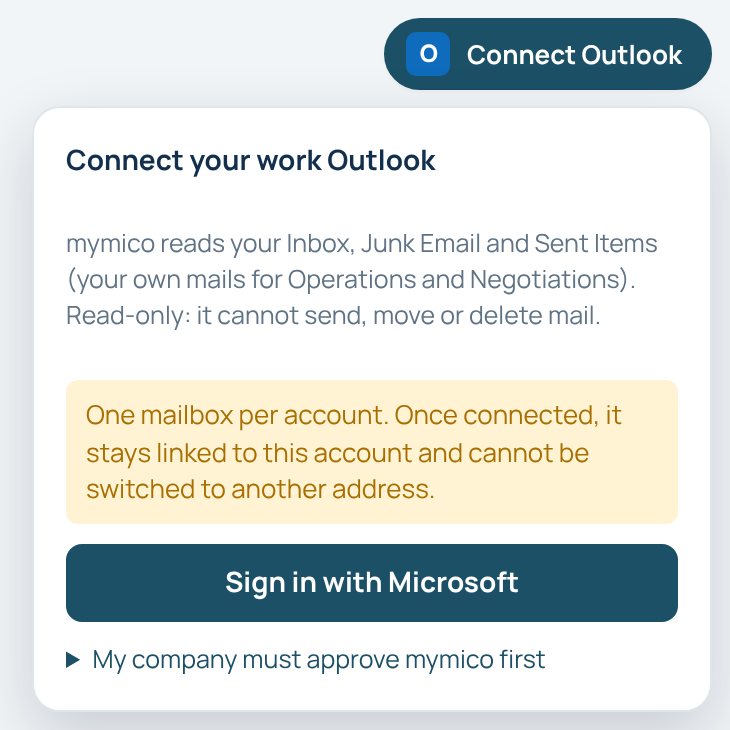
- Connect OutlookThe box at the top right of every screen. Click it and sign in with your Microsoft work account.
- Three folders, read-onlymymico reads Inbox, Junk Email and Sent Items. Never Deleted Items, archives or other folders. It cannot send, move or delete mail.
- One mailbox per accountThe first address you connect stays linked to your account. Each colleague connects their own mailbox.
- Sign in with MicrosoftOn first connection mymico reads the last 4 days of mail, so the Market fills up within minutes. After that, each new mail is read as it arrives.
- If your IT must approveSome companies only allow apps their IT has approved. Send them the approval link shown here — they approve once for the whole company.
Later, the same box shows your address, when mail was last checked and this week’s mail count. You can pause reading and resume it any time.
Your mail stays yours
You keep working in Outlook exactly as before. mymico works next to it, on a copy of what it is allowed to read.
Nothing changes in Outlook
- Your mails stay in your folders, read or unread as you left them.
- mymico never answers, forwards, moves or deletes a mail.
- You answer brokers, owners and agents from Outlook as always.
Only shipping business is read
- Before any AI reading, mails that are clearly not shipping business are skipped: auto-replies, newsletters, internal mail, invoices.
- Forwarded mails are credited to the original sender.
- Attachments are read only for mails on your own fixtures (NOR, SOF, B/L) — never for circulars.
Kept only as long as needed
- Mails are deleted after 14 days, except mails on an open negotiation or fixture, kept until it closes.
- Your office’s data is never shared with or pooled across other offices.
- Your mail is not used to train AI models.
- Cancel and the office’s data is deleted within 30 days after the last paid day.
How mymico reads and sorts your mail
Every new mail is read with AI and sorted in minutes. The reading is very good but not perfect — so every vessel and cargo keeps a link to the mail it came from, for you to check.
Vessel positions → Market
- Name, DWT/DWCC, grain/bale cbft, built, box, where and when she opens.
Cargo orders → Market
- Cargo, quantity, SF, load/discharge ports, laycan, rates, terms, commission.
Negotiation replies → Negotiations
- Replies with the vessel’s name in the subject join the negotiation.
Ops mails → Operations
- Agents’ and masters’ mails about a fixed vessel join its fixture.
Ports and areas
- Our own list of about 200 ports with their local names and areas such as CVB or POC (Pivdenny, Odessa, Chornomorsk).
- About 3,100 more ports from the World Port Index.
- Sea distances follow real routes through the straits and canals.
The same cargo from many brokers
- Copies of one cargo are merged into one line.
- Sources are counted by company, not by sender.
- The copy with the lowest commission is shown first.
- Merged by mistake? “Not the same cargo” splits them.
Direct and favourites
- Direct: the mail says it comes from owners or charterers themselves, or their exclusive broker (“our vessel”, “home tonnage”).
- Favourite senders come first when the same cargo arrives from several companies.
Anything else → left alone
- Mail that is not vessels, cargoes or operations stays only in your Outlook.
How matching works: four checks
Every vessel in your mail of the last 7 days is checked against every cargo of the last 7 days. Each pair gets four checks — the colour of the match is the weakest of them.
1 · Size
- The vessel’s DWCC (or DWT if that is all owners gave) against the cargo quantity.
- Below the minimum by more than 10%: doesn’t fit. Slightly below: check.
- Up to 25% bigger than the maximum still fits; bigger is left out.
- Time charter: the DWT asked for, ±10%.
2 · Cubic
- Grain (or bale) cbft ÷ the cargo’s stowage factor = the most she can lift.
- Bale capacity for scrap, steel and pig iron.
- Cargo needs box-shaped holds and she is not box: check.
- No cubic figures given: check with owners.
3 · Dates
- When she opens + the ballast days = when she can be at the load port.
- Compared with the laycan, with one day of slack.
- Late by 2–3 days: check; later: doesn’t fit.
- Early by up to a week: check; earlier: doesn’t fit.
4 · Ballast distance
- Sea distance from her open port to the load port, at 11 knots.
- Green up to 400 nm · Yellow up to 1,000 nm · Red beyond.
- Opens in a wide area (“East Med”)? A range is shown, e.g. 0–478 nm: ask owners where.
All four checks pass.
At least one check needs a look: a figure is missing, tight, or just outside.
Hidden unless you tick “Show non-fitting”, which lists them with the reason.
Market: everything read from your mail
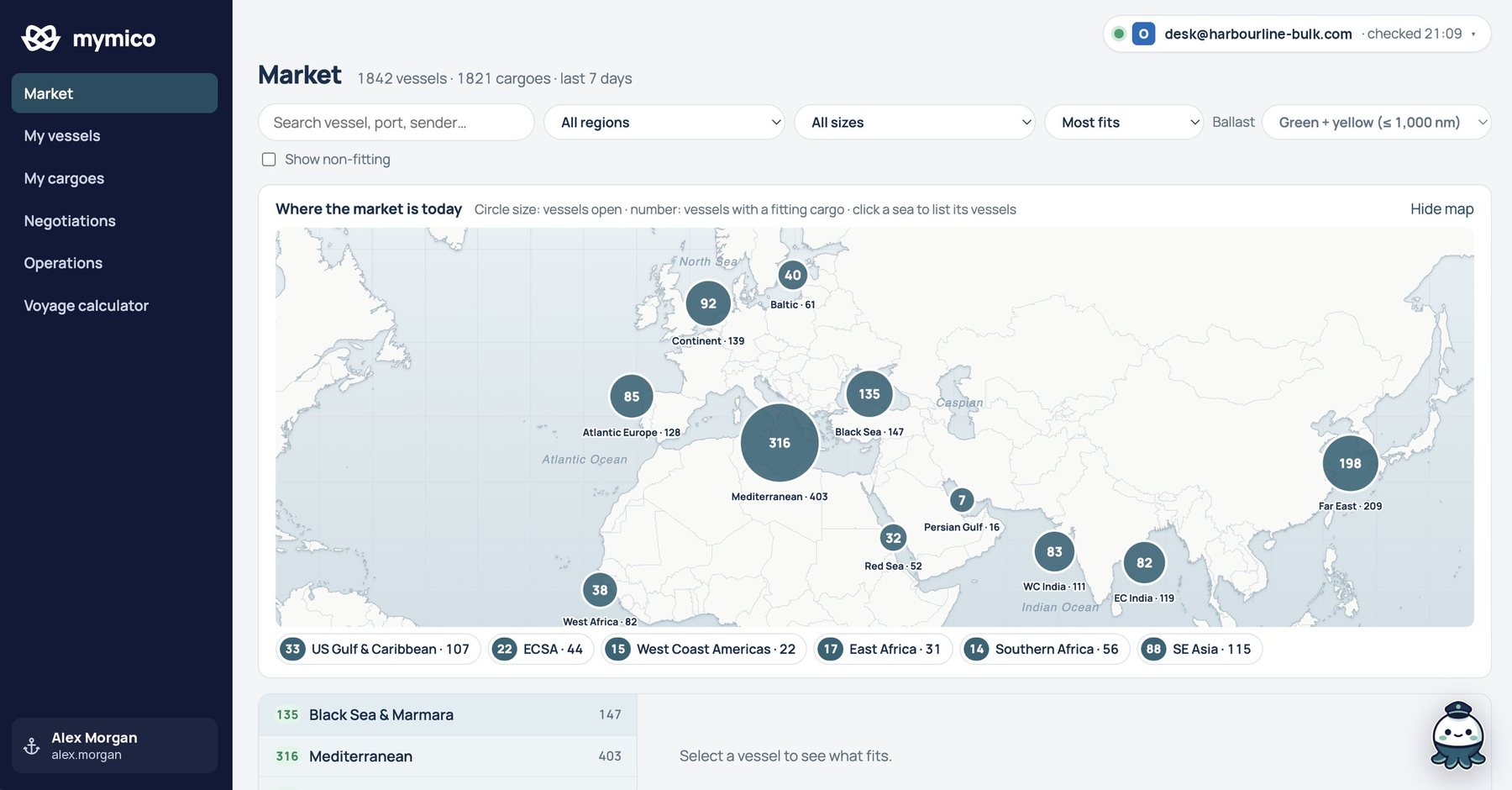
- SearchFind a vessel, port or sender in the last 7 days.
- Region, size and sortNarrow to one region or size class; sort by most fits, size or who opens soonest.
- Ballast reachWhich cargoes count: green only, green + yellow (default) or any distance.
- Where the market is todayOne circle per region: size = vessels open there, number = vessels with a fitting cargo. Click a sea to list its vessels.
- Other regionsRegions outside the map, with the same two numbers.
- Vessel listGrouped by region. Pick a vessel to see what fits her, each cargo checked for size, cubic, dates and distance.
- Your mailboxWhich Outlook is connected and when it was last checked.
On a match: ☆ star adds it to My vessels / My cargoes · ♡ heart marks a favourite sender · Fixed opens a new fixture in Operations with everything filled in · Voyage estimate opens the calculator with this pair.
My vessels: cargoes for your own ships
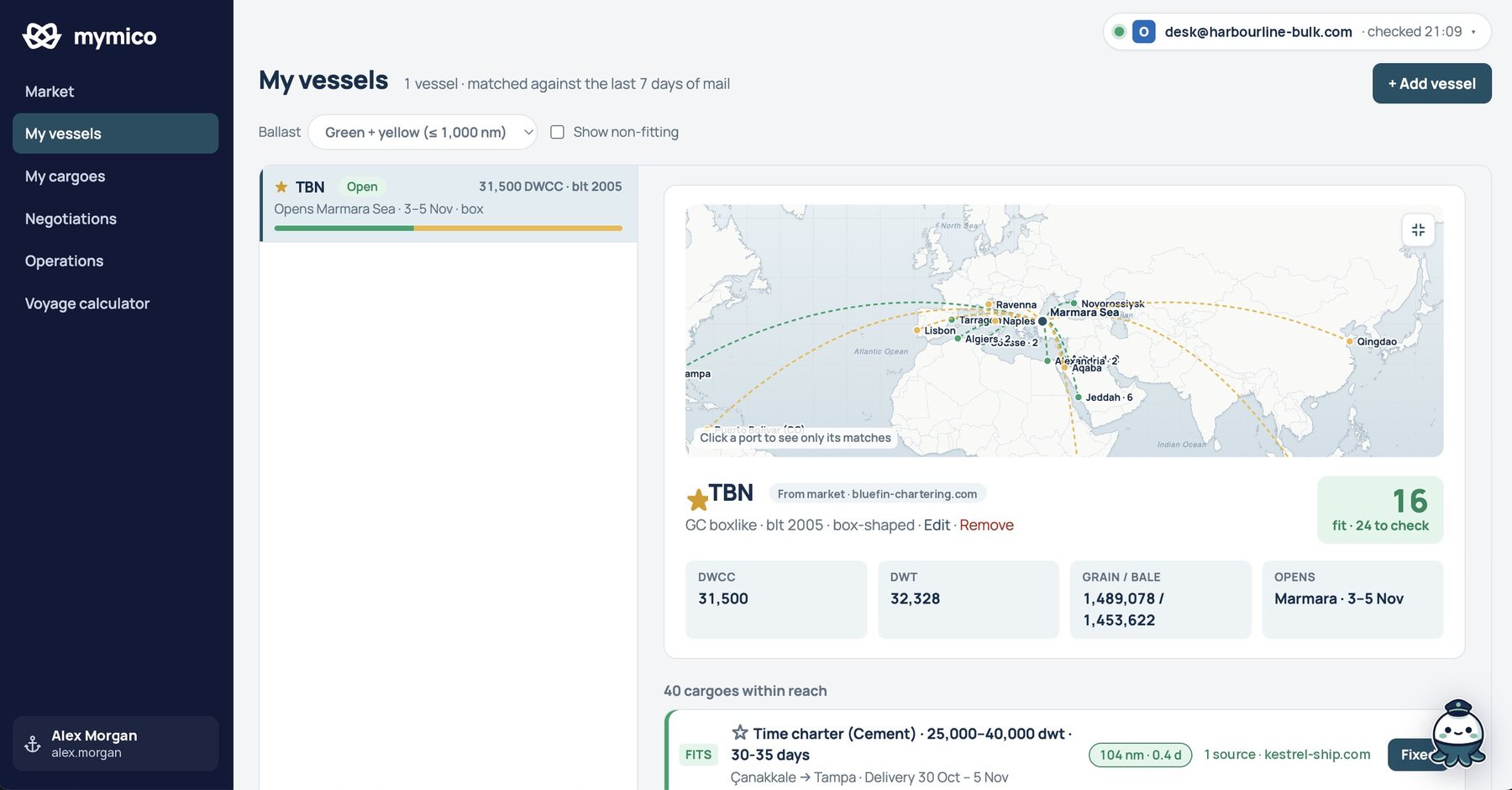
- Add vesselPaste her position as written (“MV … open Varna 22-25 Oct”) and Fill the form reads it — or type it in. Starred Market vessels appear here too.
- Your vesselsThe bar shows how many cargoes fit right now (green) and how many to check (yellow).
- Where the cargoes goEach fitting cargo on the map. Click a port to see only the cargoes going there.
- Fit and to checkHow many cargoes in the last 7 days of mail fit her, and how many need a look.
- Her particularsDWCC, DWT, grain/bale, where and when she opens — used by every check.
- Cargoes within reachEach cargo with its result, ballast distance and days, sources and commission. Fixed sends it to Operations.
My cargoes: vessels for your own cargoes
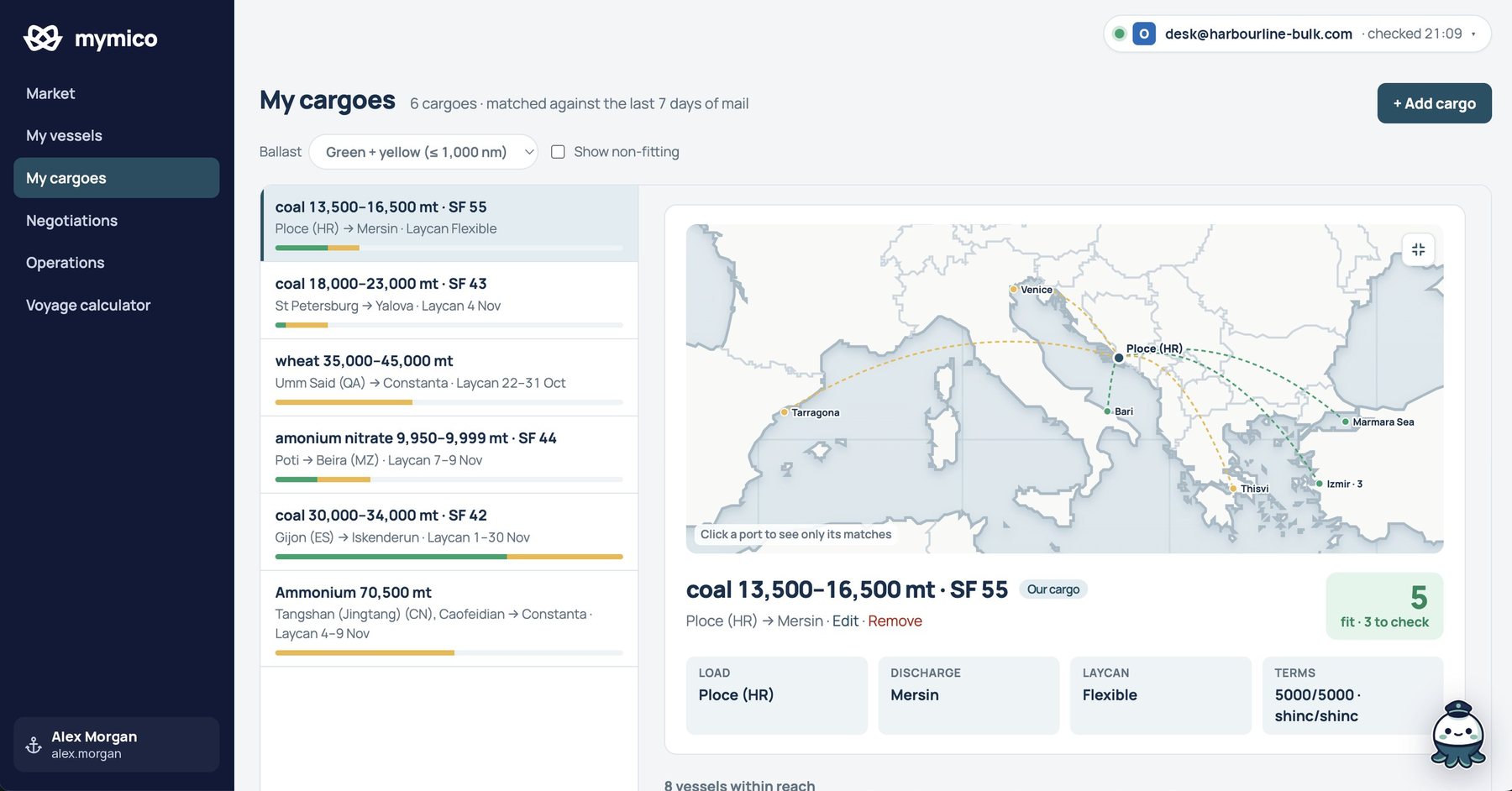
- Add cargoPaste the order as written (“CVB / Libya 6-8000 mts wheat …”) and Fill the form reads it — or type it in.
- Your cargoesYour own and starred cargoes, each with how many vessels fit right now.
- Where the vessels openFitting vessels on the map, coloured by ballast distance. Click a port to see only the vessels opening there.
- Your cargoLoad, discharge, laycan and terms. Edit or remove it any time.
- Vessels that fitHow many vessels fit and how many to check, listed below with every check.
Tip: keep your firm cargoes and exclusive vessels here. Mico tells you each morning when a new vessel or cargo fits them.
Negotiations: from firm bid to clean recap
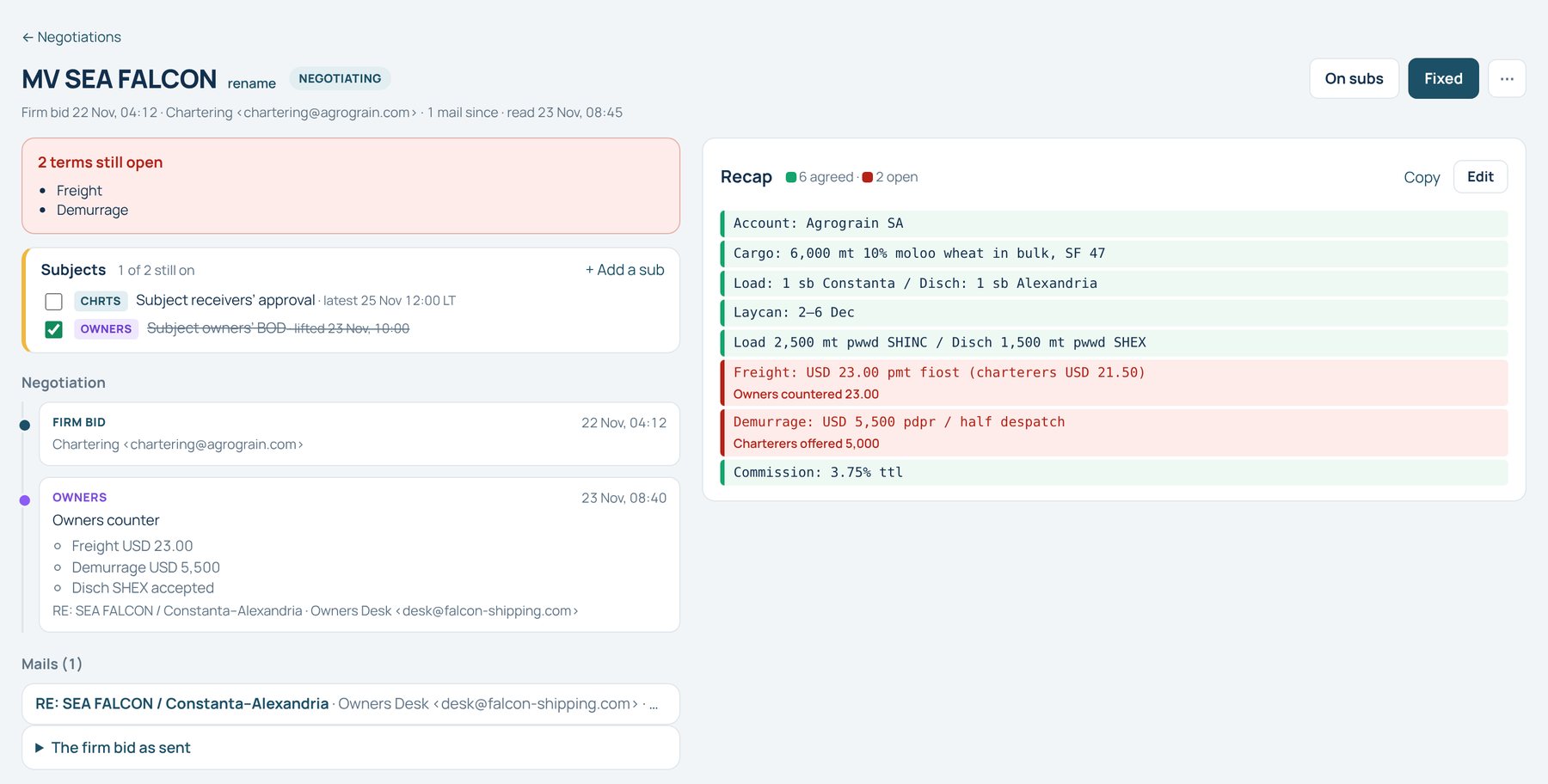
- Terms still openStart a negotiation by pasting the firm bid or firm offer (or uploading the .eml). The open points are listed at the top.
- SubjectsSubs from both sides with their deadline. Tick one when it is lifted, or add one by hand.
- The negotiation, step by stepReplies with the vessel’s name in the subject are added by themselves — what each side changed, in short. A reply under another subject can be added by hand.
- The recap as it standsGreen terms are agreed, red are still open. Edit a line or paste your own recap — new mails are read on top of it. Copy it into your mail.
- On subs / FixedFixed moves the vessel to Operations with the recap, so the voyage is followed against these terms.
Your own replies count too: mymico reads your Sent Items, so both sides of the talk are on one screen.
Operations: every fixture followed against its C/P
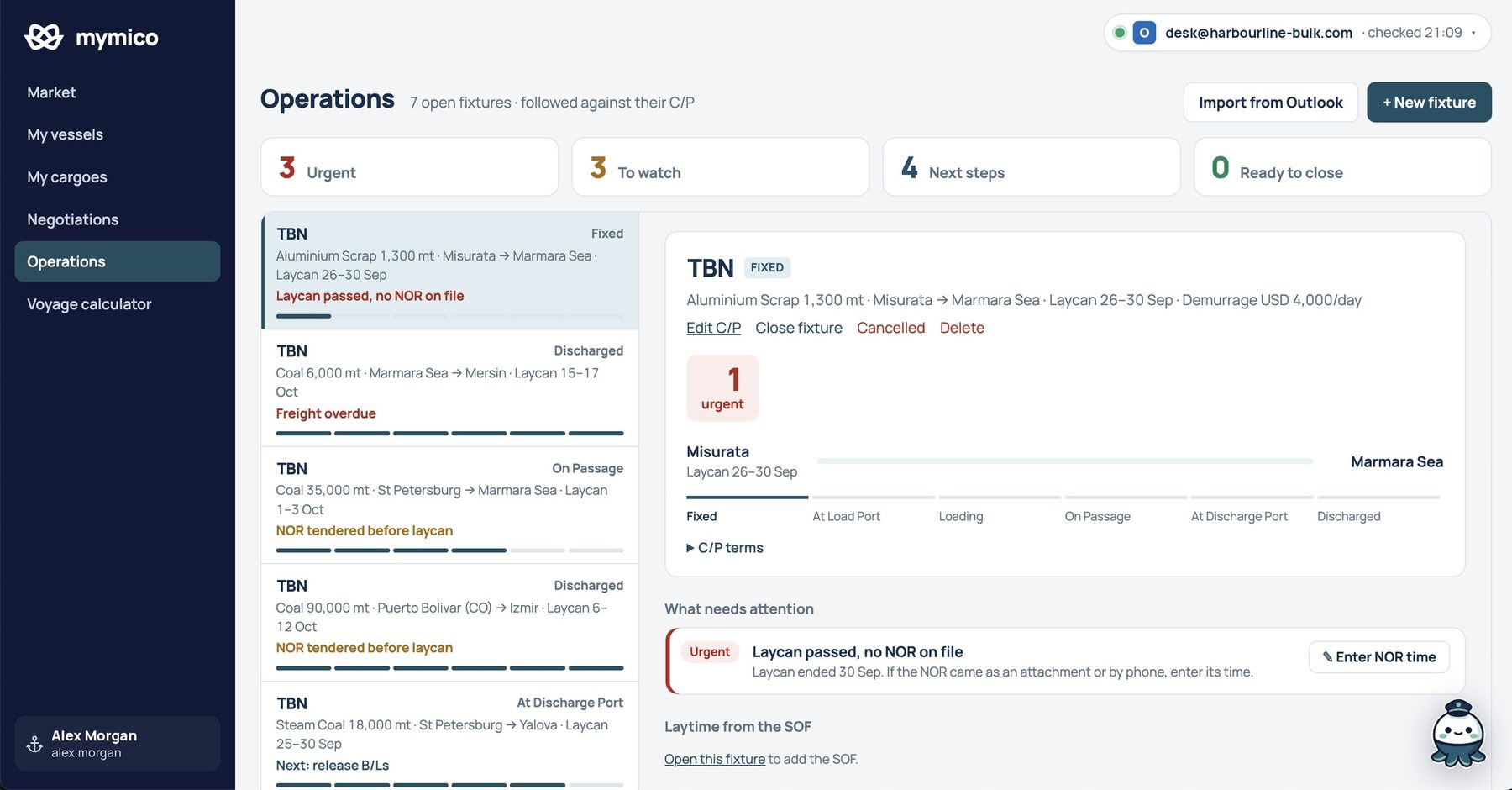
- Import from OutlookAgents’ mails moved to another folder by your Outlook rules? Type the folder’s name and its mails are linked too. Nothing is moved in Outlook.
- New fixturePaste the recap and Fill the form, or arrive here from Fixed in the Market or Negotiations with everything filled in.
- At a glanceUrgent: act now · To watch: may turn into a problem · Next steps · Ready to close: discharged, nothing open.
- Your fixturesEach vessel with its stage and its most pressing point.
- The voyageFixed → at load port → loading → on passage → at discharge port → discharged, moved on by the agents’ mails.
- What needs attentionRead from the mails against the C/P. Fix a point by hand, e.g. enter the NOR time if it came by phone.
What mymico watches on a fixture
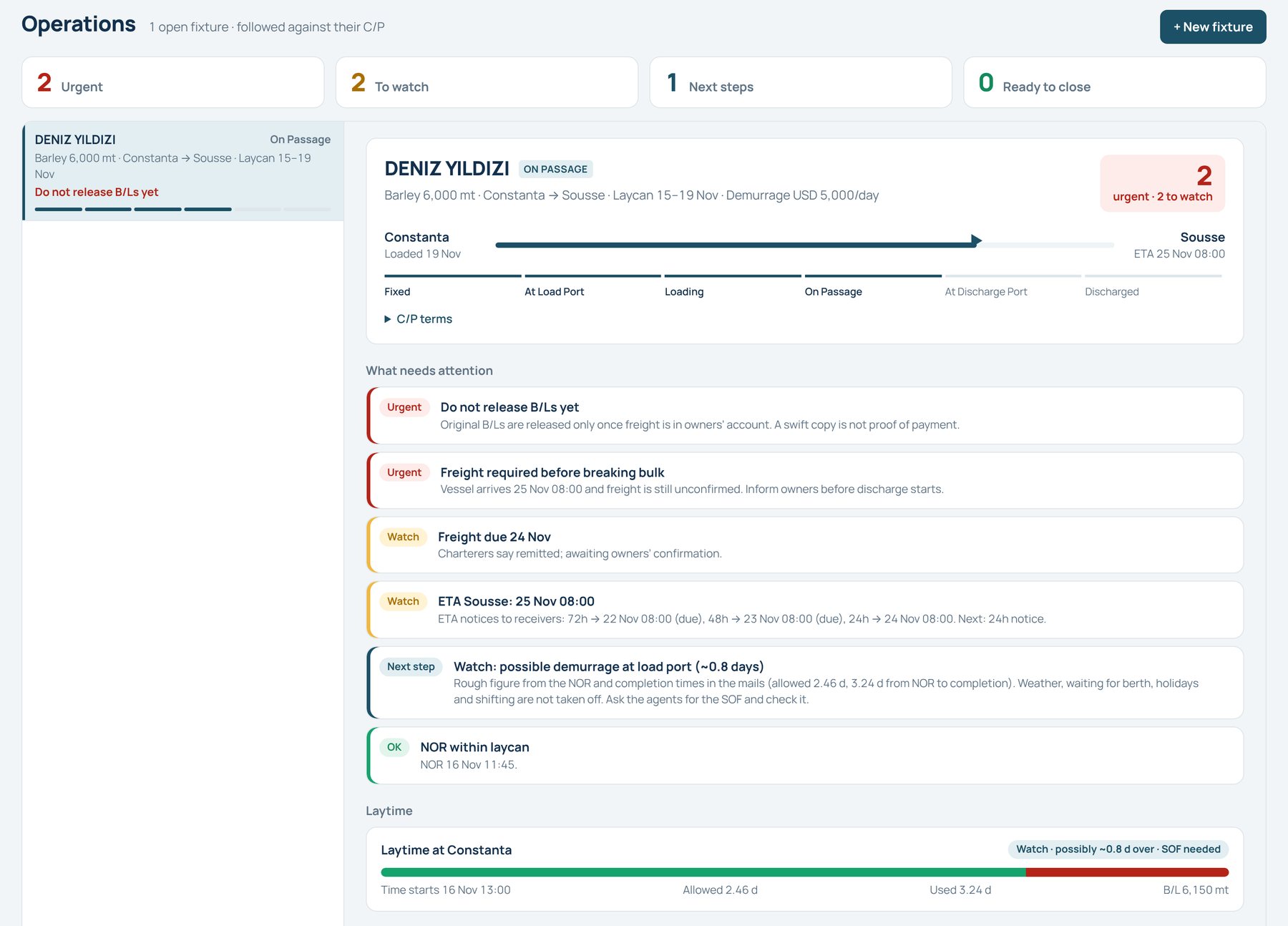
- CountersUrgent, to watch, next steps and ready to close for this fixture.
- Where she isLoaded, sailed, ETA — from the agents’ and master’s mails.
- Alerts against the C/PNOR tendered before laycan / within laycan · laycan passed, no NOR on file · freight due, freight overdue · freight required before breaking bulk · do not release B/Ls yet · ETA notices · laycan revised.
- Laytime warningFrom the NOR and completion times in the mails: possible demurrage or despatch — a rough figure until the SOF arrives.
- Laytime barAllowed against used time. Add the SOF for the exact calculation (next section).
Attachments on your fixture mails are read too: PDF, Word, Excel and photos (NOR, SOF, B/L). Their times go into the fixture’s timeline. With the IMO number in the C/P, the vessel opens on MarineTraffic.
Laytime from the SOF
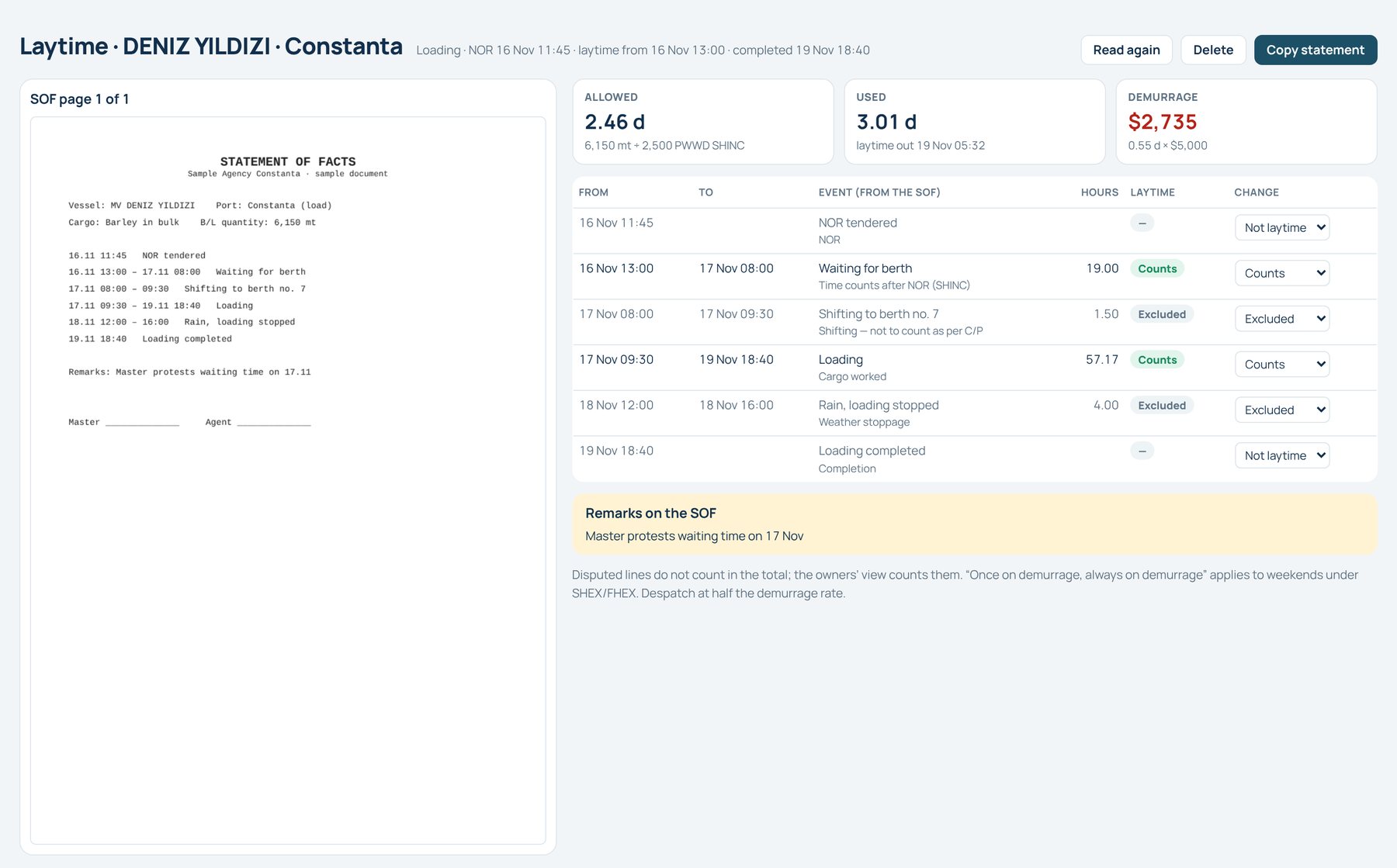
- The SOFUpload it (PDF or picture) or paste it. A SOF attached to an agent’s mail on your fixture is read by itself.
- Allowed, used, demurrageAllowed time from the quantity and the C/P rate; used time from the SOF; demurrage or despatch (half the demurrage rate).
- Every line judgedEach SOF line marked counts, excluded (shifting, rain, holidays…) or disputed, with the reason.
- Your callChange any line — the totals update at once.
- RemarksMaster’s and agents’ remarks and protests from the SOF.
- Copy statementA laytime statement as text, ready to paste into your mail.
Weekend terms are applied as written: SHINC / SHEX / FHEX / SATPM, with or without “unless used”; once on demurrage, always on demurrage. Mico reads the SOF — you check it before sending.
Voyage calculator: a quick TCE
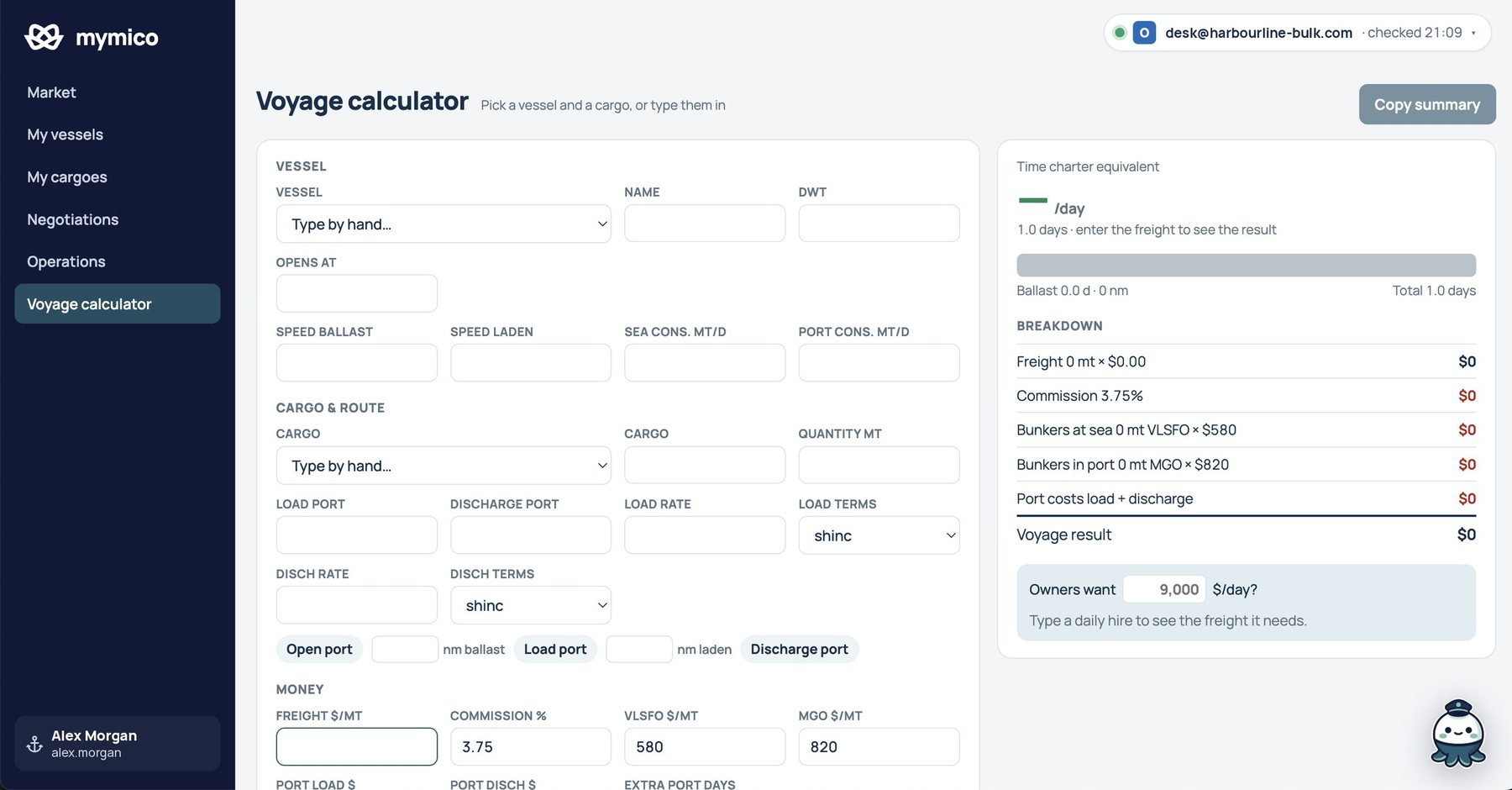
- VesselPick one from the Market or My vessels, or type it in: speeds and consumption.
- Cargo and routePick a cargo or type it in: quantity, ports, load and discharge rates and terms.
- DistancesBallast and laden distances are worked out from the ports. Change any figure by hand.
- Time charter equivalentTCE per day and the voyage result, with the days split into ballast, port and laden time. Bunkers, commission and port costs in the breakdown.
- Owners want … $/day?Type the hire owners ask for and see the freight it needs.
- Copy summaryThe estimate as text, ready to paste into a mail.
From a match in the Market, Voyage estimate opens the calculator with that vessel, that cargo and the distances already filled in.
Mico: your morning news and end-of-day report
Mico is the octopus at the bottom right of every screen. He opens by himself after 09:00 with what changed overnight, and after 17:00 with the end of the day.
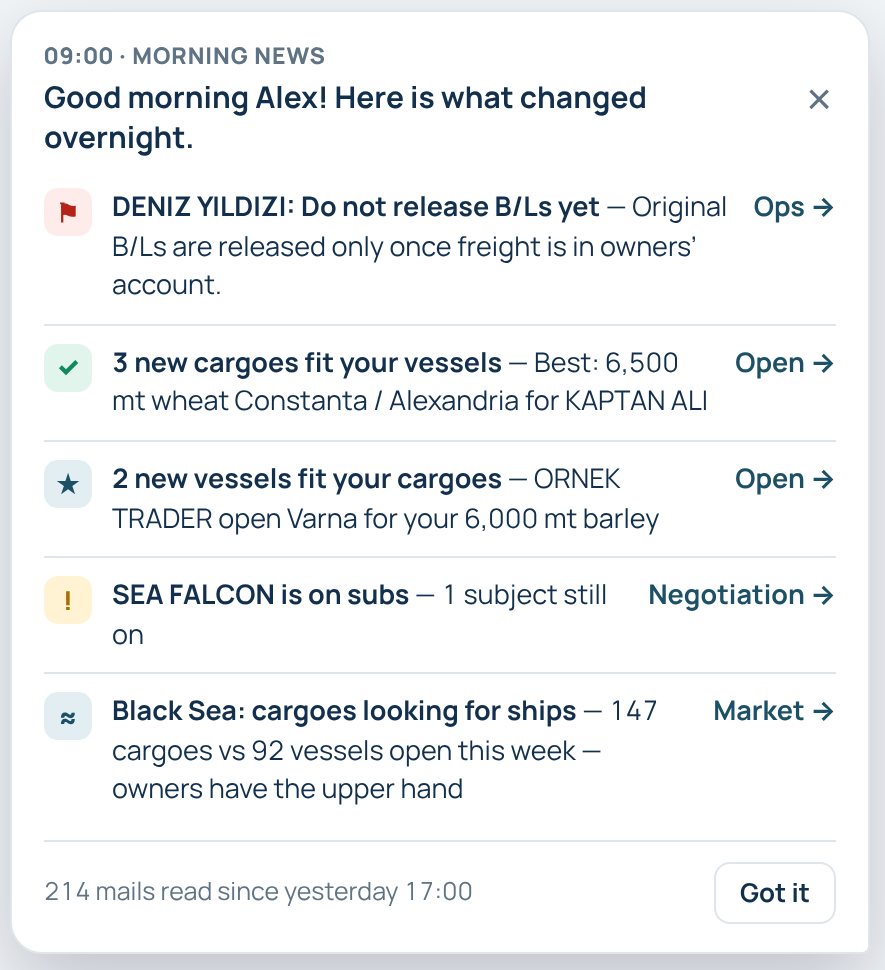
- Two reports a dayMorning news at 09:00, end-of-day report at 17:00. Click Mico any time for the latest one.
- Urgent firstUrgent and reminder mails on your fixtures. Mico raises a red flag until you press “I got it”.
- New fitsNew cargoes for your vessels and new vessels for your cargoes since the last report.
- One click awayEach line opens the right screen: the fixture, the negotiation on subs, the Market.
- Got itFolds Mico back to his button. Also in the report: laycans closing this week, and where ships or cargoes are short.
Ask Mico about your own data
Type a question under Mico’s report, in plain words: “Which 5–8k vessels open in Marmara next week?”, “Wheat cargoes loading in the Black Sea this month”, “My fixtures with laycan this week”.
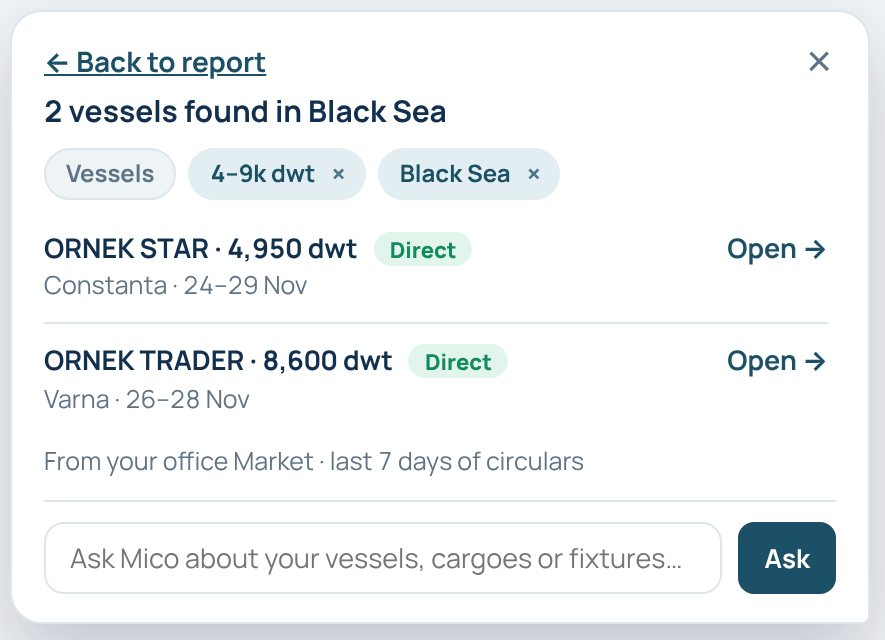
- Back to reportThe answer takes the report’s place; one click brings the report back.
- What Mico understoodYour question becomes a search, shown as chips. Click a chip to change it (“Black Sea” → “Marmara”) or × to remove it — the list updates at once.
- Real records onlyEvery line is a vessel, cargo or fixture from your own data. Open → takes you to it in the Market.
- Where it lookedVessels and cargoes from your office Market (last 7 days); fixtures from your own Operations.
- Ask againMico searches vessels, cargoes and fixtures. For anything else (“why did freight drop?”) he says so and offers example questions.
Your office: captain, crew and plan
Captain and crew
- The person who opens the office is the Captain: invites and removes colleagues and manages the plan.
- Colleagues are Crew. Each one connects their own Outlook.
- One person belongs to one office.
Shared and personal
- Shared in the office: the Market — circulars and the vessels and cargoes found in them.
- Yours only: your other mails, negotiations, fixtures, SOFs, My vessels and My cargoes.
- No other office can see anything of yours.
Seats and plan
- Account → Plan & payment: add a seat with + (charged for the rest of the month) or remove one after removing a crew member.
- Invoices, card and monthly ↔ yearly in “Manage billing”.
- “Cancel plan”: the plan ends at the end of the trial or paid period, no extra charge.
Help when you need it
- Account → Help & support: write to us, we reply by email.
- The first-visit tour and hover hints explain every button.
If a payment fails
- The office is paused until the card is updated; mail keeps arriving and is read once payment goes through.
Prices
- Monthly: $129 first user + $89 each extra.
- Yearly: $1,290 + $890 each extra.
- Up to 10 users online; more: hello@mymicoship.com. Taxes added where they apply.
Let Mico read the mail. You fix the ships.
7 days free · Cancel anytime · Read-only Outlook connection
Start your 7-day free trial